

What this plugin does
ChannelEngine Orders Sync for WooCommerce connects one ChannelEngine tenant to WooCommerce through the Merchant API. It imports new marketplace orders every 15 minutes, acknowledges them, pushes shipments when you fulfil, pulls cancellations, and pushes stock every hour.
Background jobs run on Action Scheduler (WP-Cron if unavailable). Nothing runs until Enable syncing is ticked.
Requirements
- WordPress 5.8 or later and PHP 7.4 or later
- WooCommerce 7.0 or later, HPOS or legacy order storage
- A ChannelEngine account with a Merchant API key
- Products whose WooCommerce SKU equals the Merchant Product Number in ChannelEngine
Installation
- Install the zip at Plugins → Add New → Upload Plugin and activate it with WooCommerce active.
- Open WooCommerce → ChannelEngine Sync. Tabs: Settings, Sync log, Status.
Connecting to ChannelEngine
- In ChannelEngine open Settings → Merchant API keys and create a key.
- In the plugin, enter your tenant name — just the name, e.g.
acmeforacme.channelengine.net, not the full URL. - Paste the API key and save.
- Press Test connection. When it succeeds, tick Enable syncing and save.
- Optionally press Sync orders now to pull immediately rather than waiting for the schedule.

Settings reference
| Setting | What it does |
|---|---|
| Tenant name | The first part of your ChannelEngine URL. |
| API key | Merchant API key. Stored encrypted; leave the masked value to keep it. |
| Enable syncing | Master switch. Turn off to pause background jobs without losing settings. |
| Import orders | Import new marketplace orders every 15 minutes, and acknowledge them back to ChannelEngine after import (both on by default). |
| Status for imported orders | WooCommerce status for new orders, usually Processing. |
| Push shipment when status becomes | When an order reaches this status (usually Completed), the shipment is sent to ChannelEngine. |
| Status for cancelled orders | The status given to orders the marketplace cancels. |
| Look back (days) | How far back each sync looks. Up to 30 days in the free version. |
| Marketplace prices | Whether channel prices include VAT, and whether WooCommerce should recalculate taxes on import. |
| Stock sync | Push WooCommerce stock levels to ChannelEngine every hour. |
Buttons on the settings screen
| Button | What it does |
|---|---|
| Test connection | Calls the Merchant API with your tenant and key and logs the result. |
| Sync orders now | Imports and acknowledges new orders immediately. |
| Push stock now | Sends stock levels immediately. |
How orders are imported
The plugin fetches orders with status NEW from ChannelEngine every 15 minutes. Each becomes a WooCommerce order with line items, billing and shipping addresses, shipping costs, currency and taxes, and records the originating channel and the channel’s order number.
Lines are matched by SKU against the Merchant Product Number. A line that doesn’t match is still imported as a placeholder with a warning note on the order. After import, the order is acknowledged so ChannelEngine moves it to IN_PROGRESS and the marketplace knows it has been accepted.
Imports are keyed on the ChannelEngine order ID, so repeating a sync never duplicates an order. Orders fulfilled by the marketplace itself are flagged and excluded from shipment pushes.
Pushing shipments and handling cancellations
The ChannelEngine panel on the order screen shows the channel, the channel order number, the ChannelEngine ID, whether the order was acknowledged and whether the shipment was sent. Enter the carrier or shipping method and the tracking number there and save the order.
When the order reaches the status in Push shipment when status becomes, the plugin creates a shipment for all lines with that carrier and tracking number. ChannelEngine forwards it to the marketplace. You can change the payload with the rau_ceos_shipment_payload filter — useful for a custom tracking URL or method.
If the marketplace cancels an order, the next sync sets the WooCommerce order to your cancelled status and adds a note.

Stock sync
Every hour the plugin sends stock for products with a SKU. Out-of-stock products push zero; products that don’t manage stock push a placeholder quantity you can change with rau_ceos_unmanaged_stock_value. Filter the full offer list with rau_ceos_stock_offers.
The sync log and Status tab
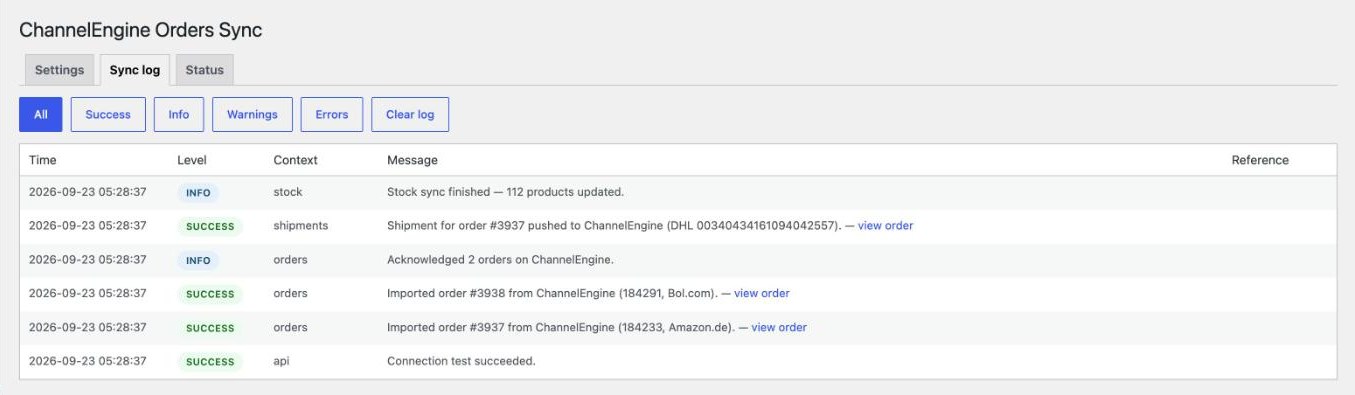
The Sync log records imports, acknowledgements, shipments, cancellations, stock pushes and errors with raw request and response detail. Filter by level; order-related entries link to the order. Entries are kept for seven days.
The Status tab shows connection and syncing state, the API endpoint, last and next order sync, last and next stock push, orders this month, errors in the last 24 hours and the scheduler in use.
What the free version includes
- Up to 100 imported orders per month
- One ChannelEngine tenant
- 15-minute order sync and hourly stock sync
- 30-day order look-back
- 7-day log retention
- One tracking number per order
Troubleshooting
| What you see | What to do |
|---|---|
| Test connection fails | Check the tenant is only the name (no https or .channelengine.net) and that the API key is a Merchant API key. |
| Orders import with placeholder lines | The WooCommerce SKU doesn’t equal the Merchant Product Number in ChannelEngine. |
| Totals are off by the VAT amount | Set Marketplace prices to match how your channels send prices (incl. or excl. VAT). |
| A shipment isn’t pushed | Check the order reached the mapped status, has a tracking number, and isn’t marketplace-fulfilled. The log explains any rejection. |
| The monthly limit was reached | The free version imports up to 100 orders a calendar month and logs a warning when it stops. |
For developers: hooks
Every hook below is part of the plugin’s public surface and safe to use from a theme’s functions.php or a small site plugin.
| Hook | Type | Use it to |
|---|---|---|
rau_ceos_order_imported | action | Run code after an order is created. Receives the WC_Order and the ChannelEngine order. |
rau_ceos_shipment_payload | filter | Change the shipment sent to ChannelEngine. Receives the payload array and the WC_Order. |
rau_ceos_stock_offers | filter | Adjust the stock rows before they are pushed. |
rau_ceos_unmanaged_stock_value | filter | Quantity for products that don’t manage stock. |
rau_ceos_loaded | action | Fires once the plugin has booted. |
// Add a tracking URL to every shipment.
add_filter( 'rau_ceos_shipment_payload', function ( $payload, $order ) {
	if ( ! empty( $payload['TrackTraceNo'] ) ) {
		$payload['TrackTraceUrl'] = 'https://track.example.com/' . $payload['TrackTraceNo'];
	}
	return $payload;
}, 10, 2 );
Uninstalling
Deleting the plugin removes its settings, counters and log table. Imported orders remain in WooCommerce.
Questions people ask
Does it create products in WooCommerce?
No. It never touches your catalogue — only orders, order notes and stock.
Can I import orders from only some channels?
Per-channel rules are part of the Pro edition. The free version imports every channel connected to the tenant.


