
What this plugin is for
“What is actually in this course?” is a surprisingly hard question to answer in LearnDash. The course builder shows you a course one drag-handle at a time; it does not show you the whole thing, and it certainly does not tell you which parts of it are broken.
Course Content Map renders any course as a complete structure tree on one screen — every lesson, topic and quiz, in order, with its status, its drip setting, its question count and its problems. Then it lets you print it, export it, or publish it.
It was built for three jobs: auditing a LearnDash site you have inherited, planning a restructure without losing track of what exists, and producing a course outline you can hand to a client or put on a sales page.
It is read-only. The only thing it ever writes is its own cache entry.
Requirements
- WordPress 5.8 or later
- PHP 7.4 or later
- LearnDash LMS
- An administrator account for the admin screen (
manage_options). The front-end shortcode has no such requirement.
No PDF library is required. Document view produces its PDF through the browser’s own print dialog, which means it works on any host, including ones where PDF extensions are unavailable.
Installation
- Install the zip through Plugins → Add New → Upload Plugin, or upload the
ld-course-content-mapfolder to/wp-content/plugins/. - Activate it.
- Go to LearnDash LMS → Content Map.
- Choose a course and click Map course.
The content map

The summary bar
Under the course title you get the course’s price type and progression mode, then counts of lessons, topics, quizzes, questions and steps — and, in red, any problems found:
| Warning | What it means |
|---|---|
| N draft steps | Steps that are draft, pending or private. Learners cannot see them, which is fine if deliberate and a hole in the course if not. |
| N empty quizzes | Quizzes with zero questions. On a linear course these are dead ends. |
| N steps without content | A lesson or topic with an empty body. Usually a placeholder that was never filled in. |
| N orphaned steps | Steps assigned to this course but never placed in its structure. They exist, they belong to the course, and no learner will ever reach them. |
When nothing is wrong the bar says No problems found, so a clean course reads as a result rather than an empty space.
The tree
Below the bar is the full structure in reading order: each lesson, its topics, and the quizzes attached to each level, then the course-level quizzes at the end. Every node shows:
- Its type — Lesson, Topic or Quiz
- Its title, in red if it has a problem
- A status chip where the step is not published
- Its drip or availability setting, in plain words — “drips 14 days after enrolment”
- A question count for quizzes
- A sample chip where the step is marked as free preview content
- An Edit link straight to that post
Expand all and Collapse all control the whole tree at once, which is what makes a fifty-lesson course readable.
Orphaned steps
Orphans get their own section at the bottom, under a heading that spells out what they are: assigned to this course, not in the structure. This is the section that most often explains a mystery — a lesson you know you wrote, that nobody can find. The orphan scan is capped at 500 steps per course.
Document view
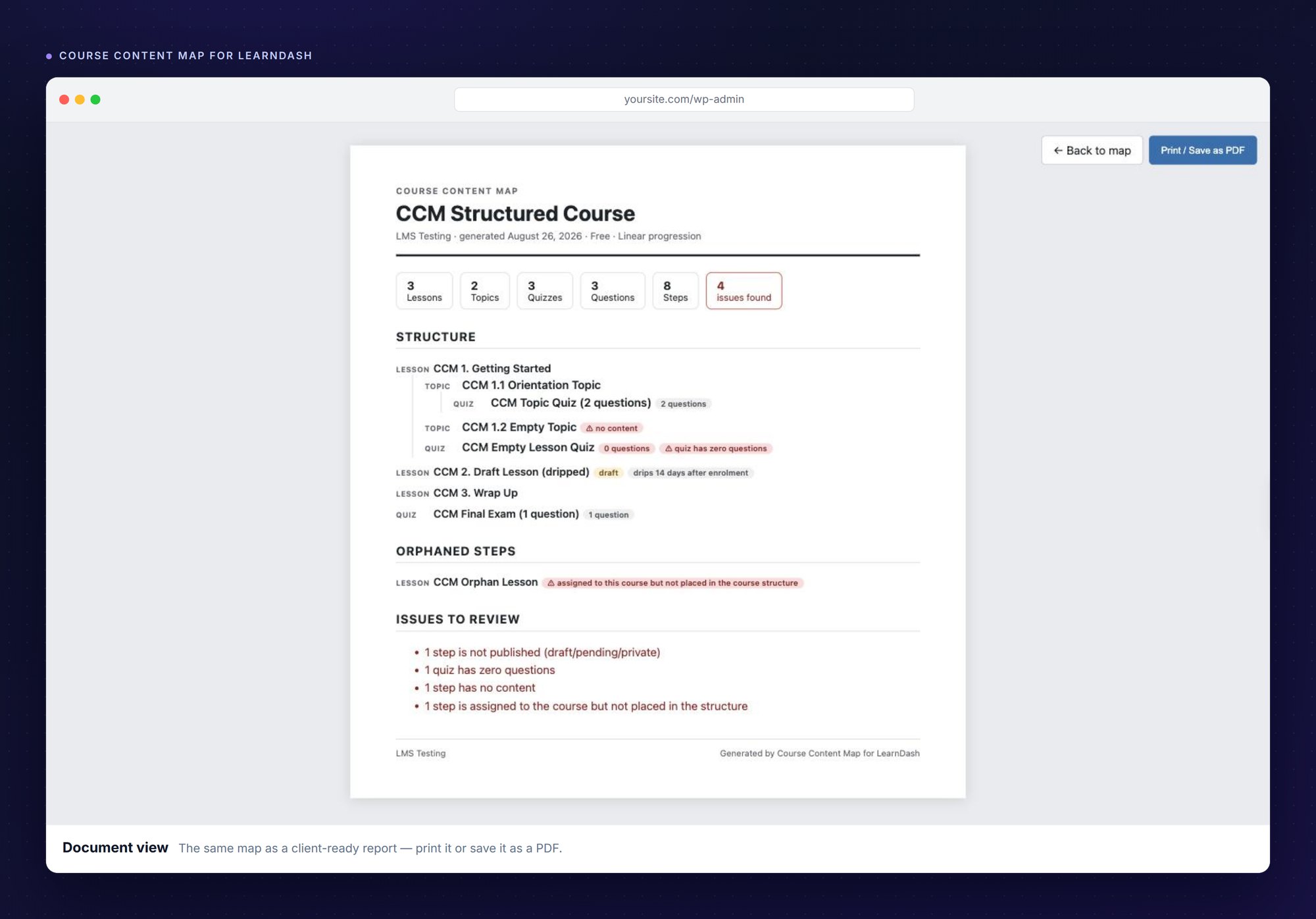
Document view (Print / PDF) opens the same map as a clean report: no admin menu, no toolbar, no edit links. A header carries the course title, the site name and the generation date; the counts become a row of stat cards; the structure follows; and any problems are gathered into an Issues to review list at the end.
The Print / Save as PDF button opens your browser’s print dialog, where “Save as PDF” is a destination on every modern browser. That is the whole PDF pipeline — no library, no server-side rendering, nothing to break on a restricted host.
This is the view to send to a client, attach to a handover document, or file with a project.
Quick print, on the main screen, is the lighter alternative: it prints the admin map itself using a print stylesheet that strips the WordPress chrome. Use Document view when someone else will read it; use Quick print when you just want the tree on paper.
Exports
Two export buttons sit in the toolbar.
Export CSV
A spreadsheet of the whole map, one row per step, with these columns:
depth, type, title, status, drip, sample, questions, problems, edit_url
depth preserves the nesting — 0 for a lesson, 1 for its topics, and so on — so the hierarchy survives the trip into Excel or Sheets. Orphaned steps are appended at the end with the type ORPHAN. This is the format to use when you want to sort, filter or plan a restructure.
Export Markdown
The same map as a nested Markdown list. This is the one for documentation: paste it into a client handover, a README, a Notion page or a project ticket and it renders as a proper outline.
The front-end syllabus shortcode

Put the shortcode on any page or post to publish the course structure publicly:
[ld_course_content_map id="123"]| Attribute | Default | What it does |
|---|---|---|
id | — | The course ID. Omit it on a page where LearnDash can already work out the course — a lesson or a course page — and it is detected automatically. |
counts | yes | Whether to show quiz question counts. Set to no for a cleaner marketing outline. |
The front-end output is deliberately not the same as the admin map. It shows published steps only, and carries no statuses, no problem flags and no edit links — so a draft lesson you are still writing never leaks onto a public page.
The markup is a plain semantic nested list, which makes it good content for a sales page: it tells a prospective buyer exactly what they are getting, and it gives search engines a real, structured description of the course rather than a marketing paragraph.
Caching
Building a map means reading the whole course structure, so each map is cached for 12 hours in its own transient, keyed by course. A cached map is what makes the shortcode cheap enough to put on a public page.
The cache clears itself whenever a relevant post is saved or deleted, so ordinary editing keeps it current. Refresh map in the toolbar forces a rebuild when you want to be certain — for example after an import that wrote directly to the database.
Troubleshooting
A step is missing from the map
Check the orphans section at the bottom. A step assigned to the course but never placed in its structure appears there rather than in the tree — which is exactly the problem the section exists to surface.
The shortcode outputs nothing
Either the course ID is wrong, or the course has no published steps. The shortcode returns empty rather than printing an error onto a public page.
The map does not reflect a change I just made
Press Refresh map. Saves normally clear the cache automatically, but a direct database write or an importer that bypasses save_post will not.
Document view asks me to log in
Document view is an admin screen and requires manage_options. Save it as a PDF and send that, rather than sending the link.
Printing includes the WordPress menu
Use Document view rather than the browser’s own print command on the admin screen. Quick print applies the print stylesheet; the browser’s menu command may not.
Frequently asked questions
Does it modify my courses?
No. It only reads them. The only write is its own cache transient.
Will it cope with a very large course?
Yes. The map is built once and cached, the tree collapses per lesson, and the orphan scan is capped at 500 steps.
Can I show the syllabus to logged-out visitors?
Yes. The shortcode has no capability requirement and shows published steps only, so it is safe on a public sales page.
Does the PDF need a plugin or a server library?
No. The browser produces it from the print dialog.
Uninstalling
Deactivating removes the admin screen and the shortcode. The cached transients expire on their own. Nothing belonging to LearnDash is changed at any point.


